AI Image Relighter
AI Image Relighter gives you full control over your photo's lighting. Upload an image and adjust light direction, color temperature, highlights, and shadows to create a clean, natural-looking relight in seconds.
How to Use AI Image Relighter?
Upload Image and Set Light Direction
Start by uploading your photo in the Input Image section. Then adjust the Light Direction to control where the light source comes from, such as the side, top-left, or back. This instantly changes the shadows and highlights to create a new lighting setup while keeping your subject unchanged.
Choose Preset and Refine Lighting Settings
Select a Quick Preset to apply a professional lighting look instantly, such as Portrait, Dramatic, Backlight, Natural, Studio, Creative, Product, or Mood. After that, fine-tune your result using lighting controls like Lighting Style, Light Type, Light Color, and Brightness. This lets you go from soft studio-quality relighting to bold cinematic lighting moods.
Select Output Format and Generate Results
Before generating, choose your preferred Aspect Ratio, such as Auto, 16:9, 1:1, 9:16, or 21:9, and select how many variations you want to generate (1 to 4). Click Generate to instantly receive multiple relit outputs that are ready for ads, ecommerce listings, thumbnails, and social media use.
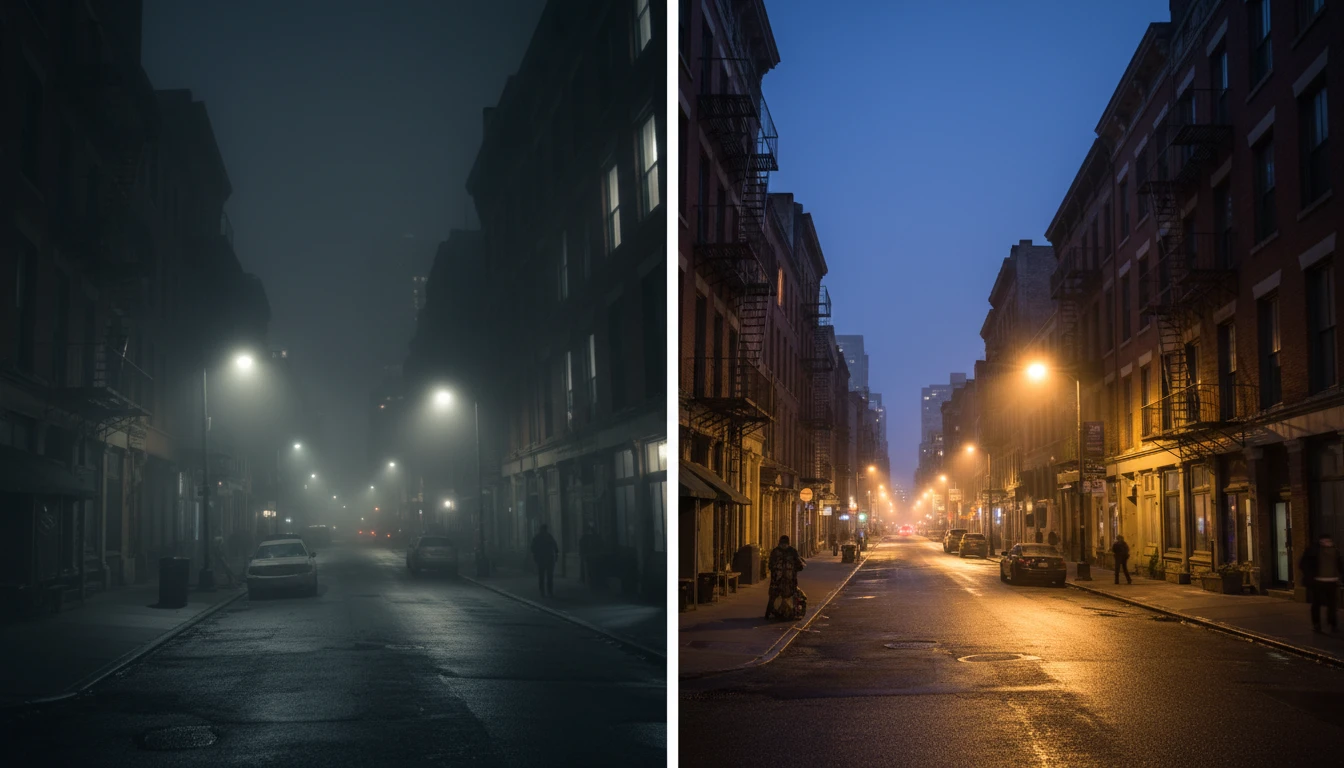
Relight Any Photo Instantly
Chroma Studio AI Image Relighter helps you change the lighting of any photo in seconds. Even if your image looks dull or dark, you can quickly make it look brighter, cleaner, and more professional without editing skills.
Lighting Looks for Different Styles
You can choose from many lighting styles depending on what you want. For example, you can use soft studio lighting for portraits and products, cinematic side lighting for a dramatic look, backlight for a premium glow, warm sunset lighting for beauty shots, bright high-key lighting for a clean feel, dark noir lighting for strong contrast, or neon/cyberpunk lighting for creative designs.
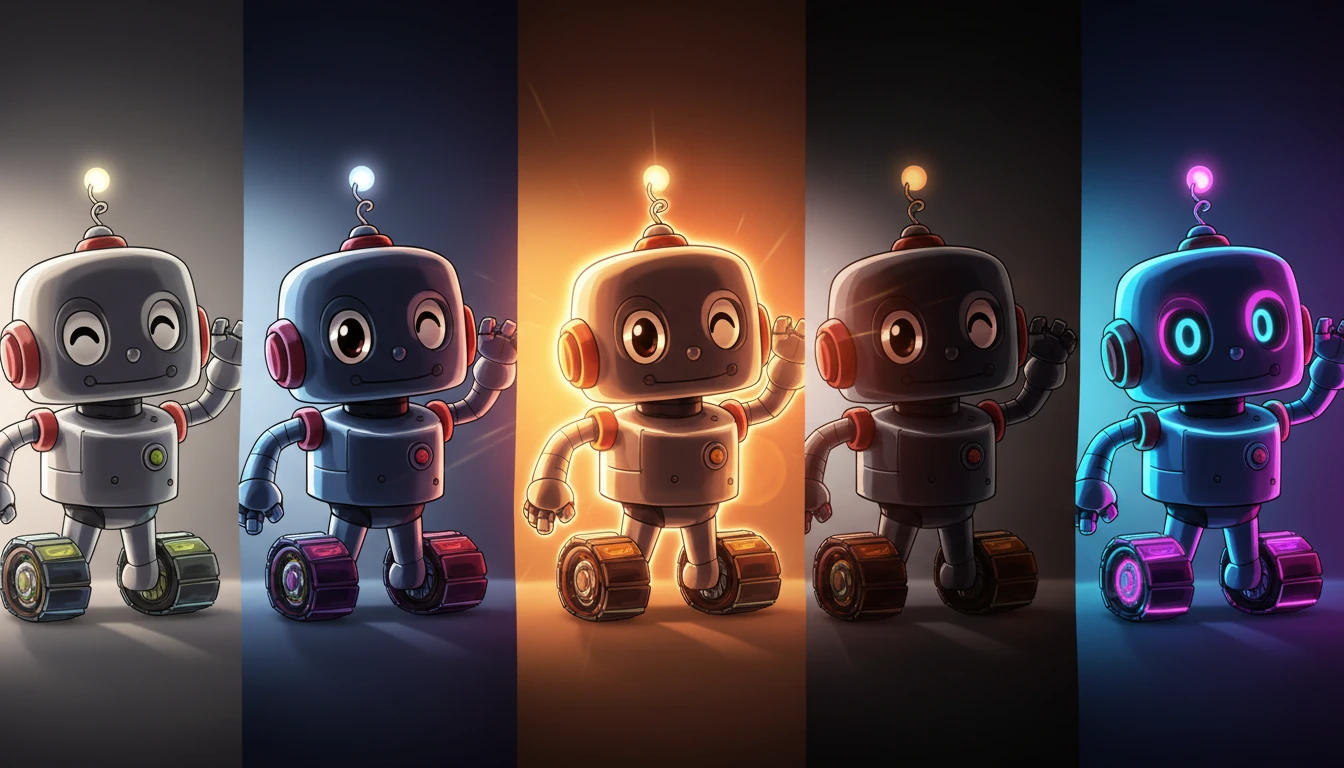
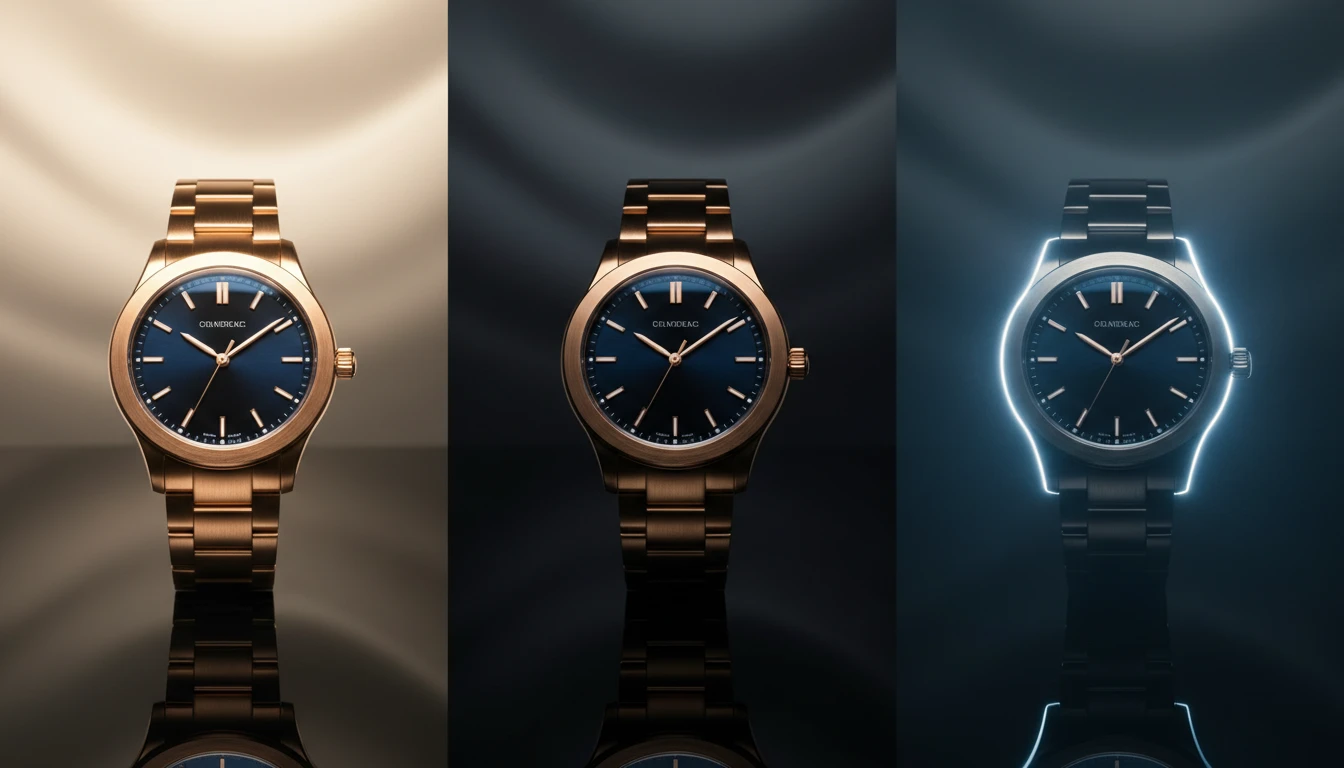
Change Light Direction
You can control where the light comes from, left, right, top, front, or behind, just like moving a light in a real studio. This makes it easy to create different atmospheres such as warm, cool, soft, dramatic, moody, or commercial lighting.
Natural Shadows and Realistic Details
The tool keeps the photo looking real by creating natural shadows and highlights. It doesn't ruin details like skin texture or product material, and it keeps the subject looking the same, only the lighting changes.
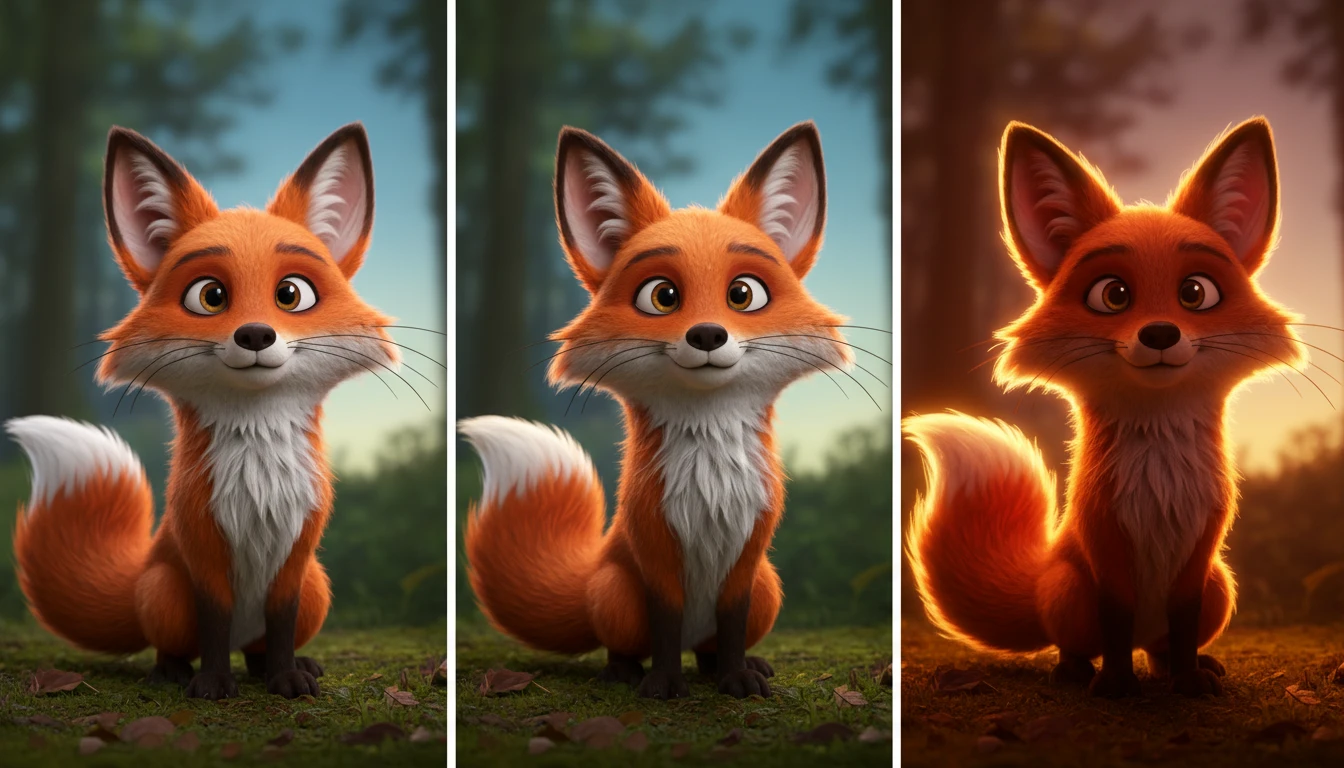
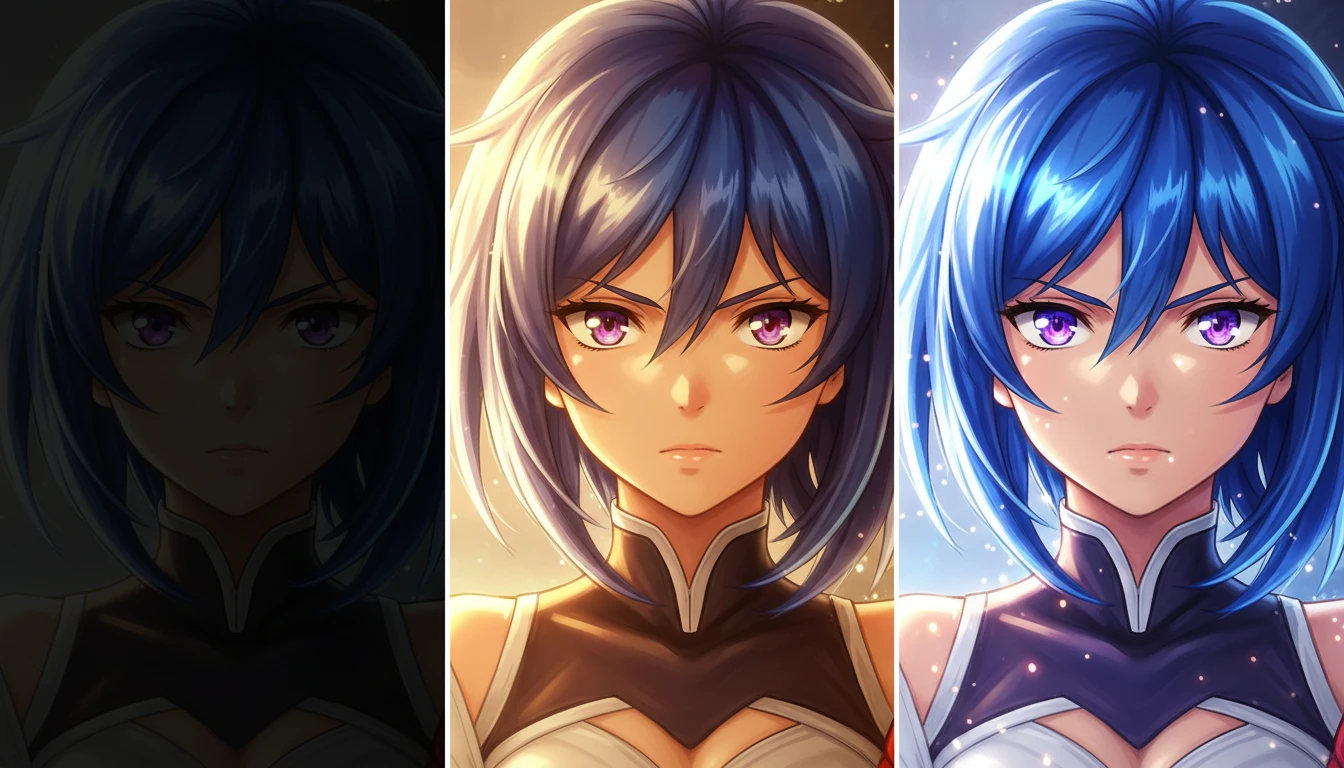
High-Quality Output for Portraits, Products, and Marketing
The final images come out sharp and high-resolution, so they're perfect for ecommerce products, ads, posters, thumbnails, and social media. It also fixes common lighting problems by brightening dark images, balancing exposure, and reducing harsh shadows automatically.